

Download iNetCourier – Secure Mac File Transfer, Free FTP Tool, Easy Internet Software
Overview
iNetCourier is a lightweight, Mac‑only FTP client that has been helping users move files across the internet since its first public release in 2006. Designed with simplicity in mind, the program provides a clean, intuitive interface that lets you upload, download, and manage remote files without the clutter of unnecessary bells and whistles. Although iNetCourier is offered as a trial version, the free download still delivers a fully functional core that covers the essential needs of casual users, web developers, and small‑business owners who need a reliable way to push website updates or share large media assets.
The current release, version 1.2.9, was last updated on January 18 2007, and it runs on Mac OS X as well as earlier Mac operating systems, making it a good fit for both modern and legacy Mac environments. Because the installer is only a few megabytes, iNetCourier occupies far less disk space than many competing FTP tools, which is a clear advantage on older Macs with limited storage. Its focus on security, straightforward file‑transfer workflow, and minimal system impact make it a practical choice for anyone looking for a free, secure way to move files over the internet on a Mac.
Key Features of iNetCourier
- Simple Drag‑and‑Drop Interface: Transfer files by dragging them between local and remote panes, eliminating the need for complex command lines.
- Secure FTP (FTPS) Support: Encrypt your data transfers with SSL/TLS to keep credentials and files safe from eavesdropping.
- Resume‑Capable Transfers: Interrupted uploads or downloads can be resumed without starting over, saving bandwidth and time.
- Multiple Session Management: Open several connections to different servers simultaneously, each with its own login credentials.
- Bookmarking & History: Save frequently accessed sites and view recent transfer logs for quick re‑use.
- Low Resource Footprint: The application runs with minimal CPU and memory usage, ideal for older Mac hardware.
- Cross‑Version Compatibility: Works on Mac OS X and earlier Mac OS releases, ensuring a broad user base can benefit.
- Integrated Transfer Queue: Prioritize files, set limits, and monitor progress in a single, easy‑to‑read panel.
Installation & Usage Instructions
Getting iNetCourier up and running on your Mac is straightforward. Follow these steps to ensure a smooth installation and start transferring files right away.
Step‑by‑Step Installation
- Download the Installer: Click the “Download iNetCourier” button below the article or visit the official product page. The file is a compressed
.dmgpackage, typically under 5 MB. - Open the DMG: Double‑click the downloaded file to mount the disk image. A window will appear showing the iNetCourier application icon.
- Drag to Applications: Drag the iNetCourier icon into your
/Applicationsfolder. This copies the app to the standard location for Mac programs. - Authorize the App: The first time you launch iNetCourier, macOS may display a security warning because the app is not from the App Store. Go to System Preferences → Security & Privacy → General and click “Open Anyway”.
- Launch the Program: Find iNetCourier in the Applications folder or use Spotlight (⌘ Space) to start it.
Basic Usage Workflow
Once iNetCourier is open, you’ll see two main panes: the left pane represents your local file system, and the right pane displays the remote FTP server once you connect. To begin a transfer:
- Enter Server Details: Click “New Connection”, then type the FTP host address, username, password, and select “FTPS” if you need a secure connection.
- Connect: Press “Connect”. The remote directory listing will populate the right pane.
- Transfer Files: Drag files or folders from the left pane to the right pane (upload) or vice‑versa (download). You can also right‑click items and choose “Upload” or “Download”.
- Monitor Progress: The transfer queue at the bottom shows real‑time progress, speed, and estimated time remaining.
- Pause/Resume: If a transfer stalls, use the pause button. Click “Resume” to continue without re‑starting the entire job.
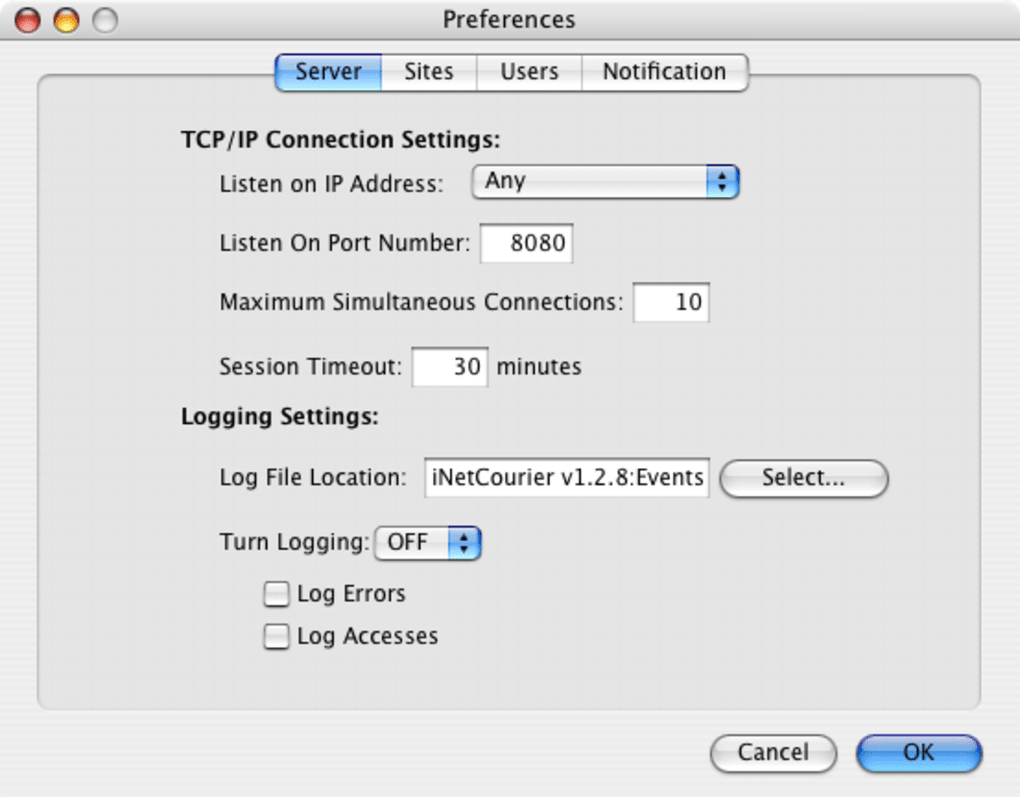
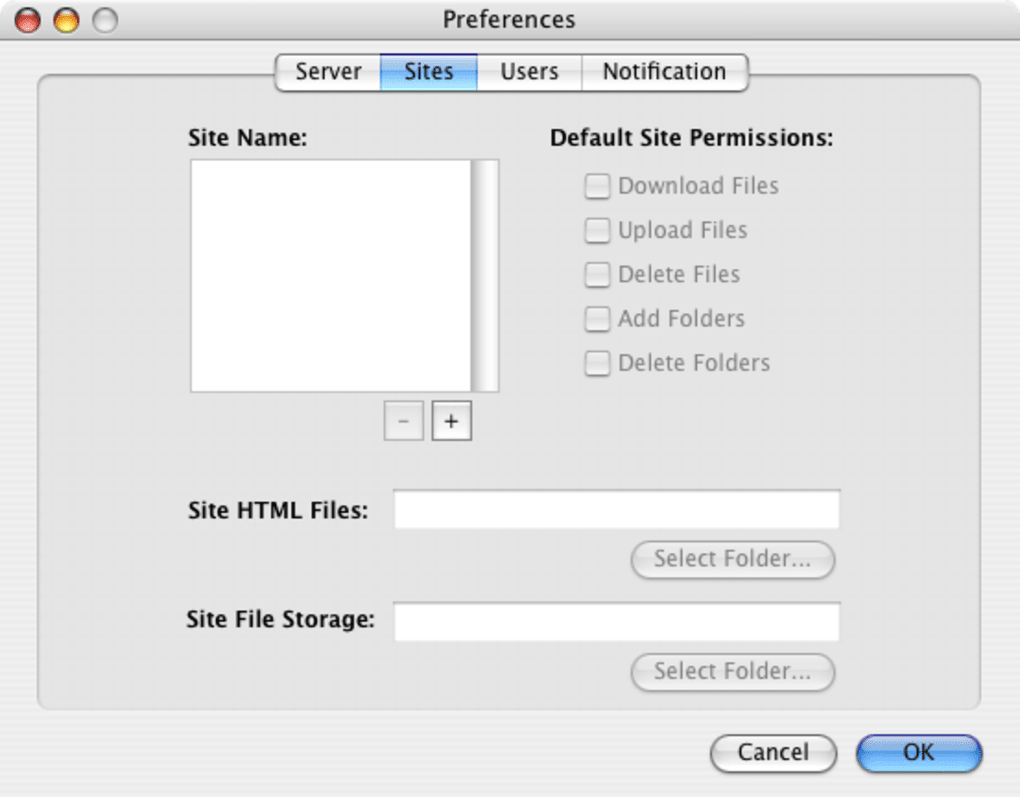
For power users, iNetCourier includes a preferences panel where you can set default ports, adjust the number of simultaneous connections, and configure timeout values. The program also supports command‑line invocation for scripting automated backups, though the graphical interface satisfies the majority of everyday tasks.
Compatibility, Performance, and Pros & Cons
iNetCourier is built exclusively for the Mac ecosystem. It runs on macOS 10.2 (Jaguar) through macOS 10.7 (Lion) and can still be installed on earlier PowerPC‑based Macs that support Classic extensions. While the software does not have native Windows, Linux, Android, or iOS versions, its focus on the Mac platform means you get a tightly integrated experience with native file dialogs and system‑level security features.
Performance Overview
Because iNetCourier is coded in a lightweight Objective‑C framework, it launches in under two seconds on most Mac hardware, even on machines with just 512 MB of RAM. Transfer speeds are limited only by your network bandwidth and the remote server’s capacity, not by the client itself. Users consistently report stable connections even on high‑latency networks, thanks to built‑in retry logic and the ability to resume interrupted transfers.
Pros
- Extremely small download size and minimal disk footprint.
- Intuitive drag‑and‑drop UI reduces learning curve for beginners.
- Secure FTPS support protects data in transit.
- Resume capability for large files prevents wasted bandwidth.
- Runs efficiently on older Mac hardware.
Cons
- Only available for macOS; no Windows or Linux version.
- Trial version may display occasional prompts to purchase the full license.
- Last major update was in 2007, so some modern FTP extensions may be missing.
- No built‑in SFTP (SSH File Transfer Protocol) support.
- Limited advanced features such as scripting or API integration.
Frequently Asked Questions
Is iNetCourier free or do I need to purchase a license?
iNetCourier is available as a free trial version that provides full core functionality. The trial may occasionally prompt you to upgrade to the full paid version for additional features, but you can continue using the basic FTP capabilities without paying.
Can iNetCourier transfer files securely?
Yes. iNetCourier supports FTPS (FTP over SSL/TLS), allowing you to encrypt both credentials and file data during transfer. This makes it suitable for transmitting sensitive information over the internet.
Does iNetCourier support SFTP?
No, iNetCourier does not include native SFTP (SSH File Transfer Protocol) support. If you need SFTP, you may need to consider alternative Mac FTP clients that offer that protocol.
Will iNetCourier run on the latest macOS versions?
The last official update was in 2007, targeting macOS 10.7 and earlier. While many users have reported successful operation on newer macOS releases, you may encounter compatibility warnings. Running the app in compatibility mode or on older Macs is recommended for optimal stability.
How do I uninstall iNetCourier?
To uninstall, simply drag the iNetCourier application from the /Applications folder to the Trash, then empty the Trash. Optionally, remove the hidden preferences folder located at ~/Library/Preferences/com.inetcourier.plist to clear all settings.
Conclusion – Should You Download iNetCourier?
If you own a Mac and need a no‑frills, secure FTP client that won’t hog system resources, iNetCourier remains a solid choice despite its age. Its straightforward interface, FTPS encryption, and ability to resume interrupted transfers cover the essential needs of most users who simply want to move files to and from a server. While the lack of modern protocols like SFTP and the absence of recent updates may deter power users, the free trial version offers enough functionality to handle everyday web‑site updates, media uploads, and backup tasks without spending a dime. Download iNetCourier today, give it a spin, and decide if its lightweight charm fits your workflow. For those who need more advanced features, consider pairing iNetCourier with a complementary tool, but for many Mac users the app’s simplicity is its greatest asset.
Download iNetCourier now and start transferring files securely and efficiently.







